
MouseFix: an open-source fix for phantom double clicks on Windows
MouseFix filters unwanted double clicks from worn-out mice. Download one EXE, choose a filtering mode and adjust the interval from the Windows tray.
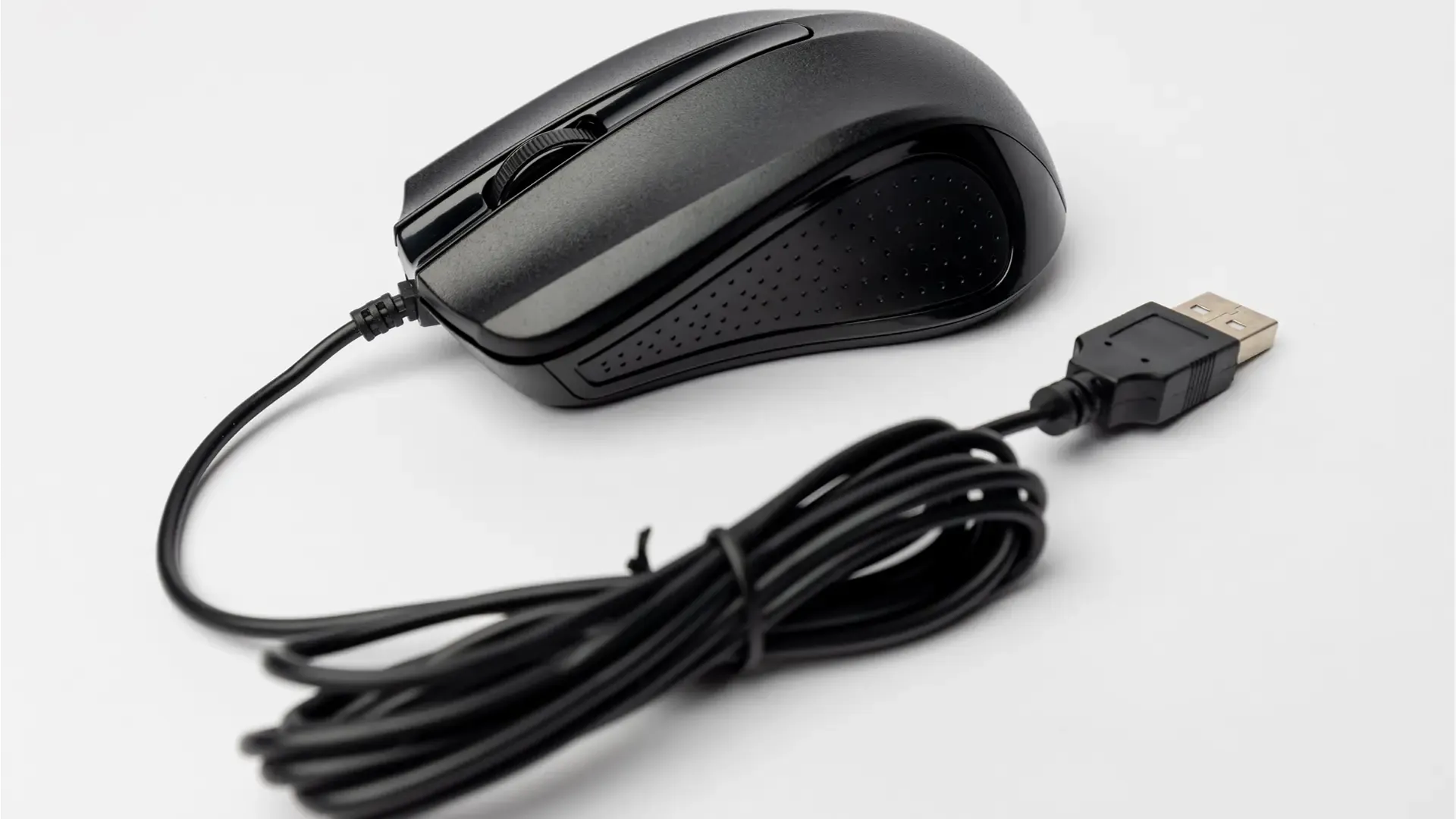
Have you clicked once and watched Windows open something twice? Or started dragging a file, only for the mouse to let go halfway through? A worn mouse switch can produce extra press and release signals, often called phantom double clicks.
MouseFix (opens in a new tab) is my open-source Windows utility for filtering those accidental events while you decide whether to repair or replace the mouse.
It is a single, small MouseFix.exe, with no installer, extra DLL or internet connection.
It supports Windows XP through Windows 11, including 32-bit and 64-bit systems, and puts a mouse icon beside the clock so you can change its settings. The interface follows the Windows language in English or Portuguese.
Download and run
- Open the latest release (opens in a new tab), expand Assets and download
MouseFix.exe. Save it in a folder where you will keep it, such as Documents. - Double-click the file. There is nothing to install. If Windows SmartScreen shows Windows protected your PC, choose More info → Run anyway after confirming you downloaded it from the project’s release page. The app is not code-signed.
- On first launch, MouseFix asks whether it should start with Windows. Choose what you prefer. Its mouse icon then appears near the clock; if it is hidden, click the ^ arrow in the taskbar.
Start with Windows may not work on every computer. Check it after restarting. If MouseFix does not appear, run MouseFix.exe yourself; the filter works whenever the app is open.
Keep the EXE in a fixed location if you use startup, because moving it later can break the saved path. Opening the EXE a second time while it is already running simply reminds you where to find its icon.
To stop filtering temporarily, click the tray icon and uncheck Enabled. To close the app, choose Exit. To remove it entirely, uncheck Start with Windows, exit, then delete the EXE.
Adjust the filter from the tray
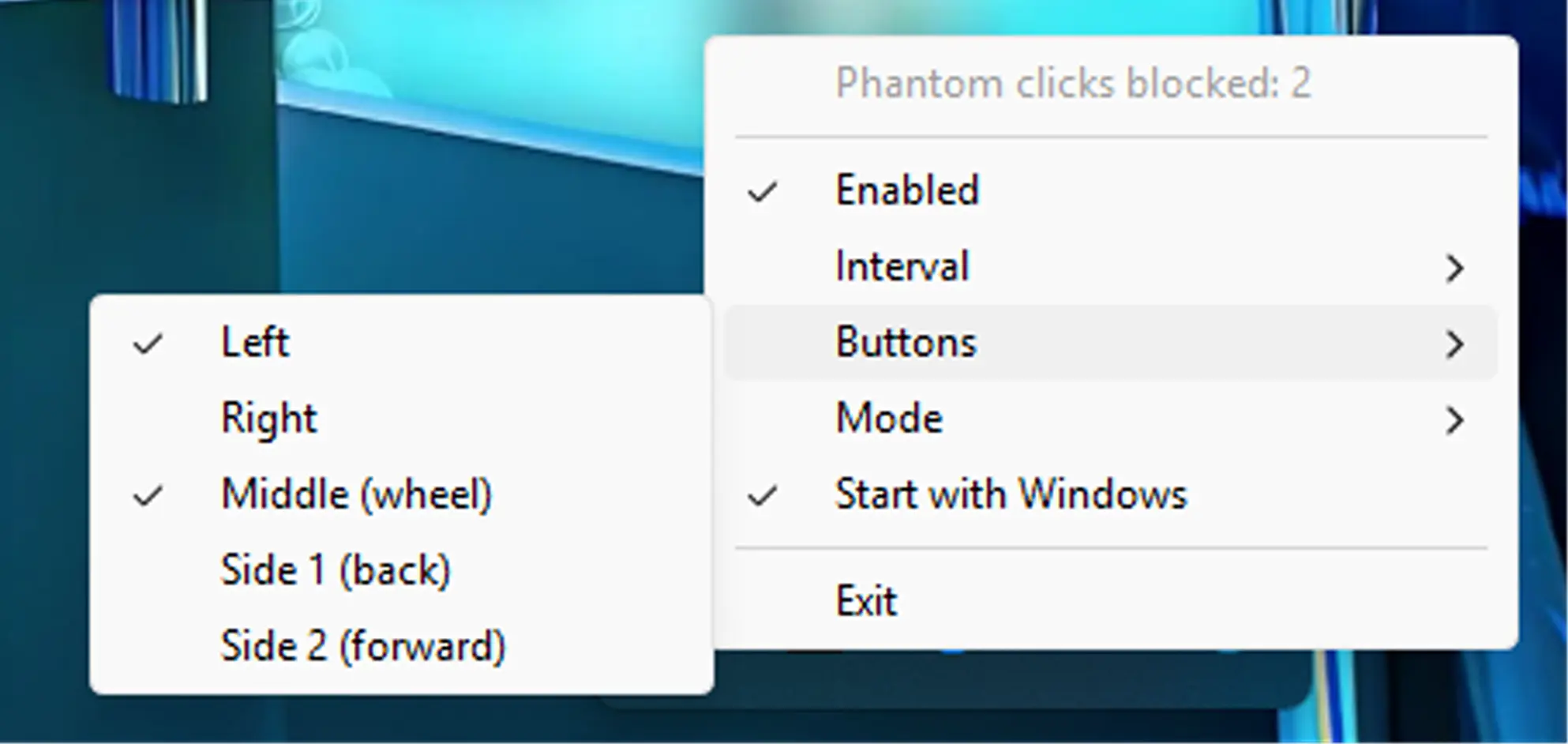
The tray menu shows how many phantom clicks have been blocked since MouseFix opened. It also lets you choose the Interval, Buttons and Mode.
The default is a 40 ms interval on the left button. You can also filter the right, middle and two side buttons. If accidental clicks still pass through, try a longer interval; if deliberate double clicks stop working, make it shorter.
The two modes solve slightly different symptoms:
| Mode | What happens | Best for |
|---|---|---|
| Block repeated click (default) | If another press arrives too soon after a release, MouseFix drops that press and its matching release. It adds no delay to normal clicks. | A single click that turns into two. A drag may still break if the switch briefly releases while you are holding it. |
| Drag-safe | MouseFix holds each release for the chosen interval. If the button is pressed again during that time, both signals are discarded, so the app receiving the drag never sees the interruption. | Drags that unexpectedly let go. Releases arrive a few milliseconds later. |
Start with the default mode. Switch to Drag-safe if interrupted drags are your main problem. The interval is a trade-off between catching a faulty switch and preserving deliberate fast clicks, so adjust it to your mouse.
What happens behind the scenes
MouseFix uses a Windows low-level mouse hook (WH_MOUSE_LL). Windows passes mouse events through the hook before other programs receive them, and MouseFix decides which events to let through. The hook runs in MouseFix’s own process; it does not inject a DLL into other applications.
Mouse events marked by Windows as software-generated, such as those from automation or accessibility tools, are left alone.
I wrote this version from scratch after analyzing an older MouseFix program (opens in a new tab) that shipped as an EXE plus a DLL.
The new version adds a visible tray menu, configurable buttons and timing, and the drag-safe mode. Its filtering logic is separate from the Windows interface and has tests in the source repository (opens in a new tab).
This is a workaround for a physical switch problem. It can make a worn mouse usable for longer, but replacing the switch or mouse is the lasting repair.
Also, if phantom clicks occur only inside a program running as administrator, MouseFix may need to run at the same privilege level to filter them.